
Automating Industrial SCADA from the Terminal: Building an Ignition CLI
What is SCADA?
SCADA (Supervisory Control and Data Acquisition) is the software that monitors and controls industrial processes — from manufacturing lines and water treatment plants to building automation and energy grids. If a factory has sensors, PLCs, and a control room screen, SCADA is the layer that ties it all together. Ignition, by Inductive Automation, is one of the most widely deployed SCADA platforms in the world.
Ignition 8.3 introduced a REST API that exposed gateway management, project operations, tag handling, and device configuration over HTTP. On paper, this should have made automation straightforward.
In practice, working with the API means writing verbose curl commands, managing custom authentication headers, and navigating undocumented quirks for every operation. It works, but it is not ergonomic — and it is especially painful if you want AI agents to interact with your SCADA infrastructure programmatically.
We built a CLI to fix that — with Claude Code as the primary development partner.
The Problem
The core issue is not that the Ignition REST API is bad. It is that there was no reusable tool between the API and the engineer. Every interaction meant either clicking through the gateway web interface or writing bespoke curl commands and Python scripts.
This matters more now than it did a few years ago. AI agents that can run shell commands — like Claude Code — are becoming a practical way to manage infrastructure. But an AI agent trying to curl its way through a SCADA API is fragile at best. Custom authentication headers, undocumented parameters, multi-step update patterns that require fetching signatures first — these are the kinds of quirks that trip up both humans and machines.
What was missing was a CLI that absorbed all of this complexity: typed commands with structured output that both humans and AI agents could use reliably. A single tool that worked equally well in an interactive terminal session, a CI/CD pipeline, or as the hands of an AI agent.
What We Built
The Ignition CLI is a Python-based tool — developed almost entirely through Claude Code sessions against a live Ignition gateway — that wraps the Ignition 8.3+ REST API into 9 command groups with 75+ commands across 4 output formats.
ignition-cli <command-group> <command> [options]

Command groups:
  config       Gateway profile management (init, add, list, test, ...)
  gateway      Status, backups, modules, logs, entity browsing
  project      CRUD, export/import, diff, file watching
  tag          Browse, read, write, export, import
  device       List, show, restart
  resource     Generic CRUD for any gateway resource
  mode         Deployment mode management
  perspective  View, page, style, session property management
  api          Raw escape hatch (get, post, put, delete, discover, spec)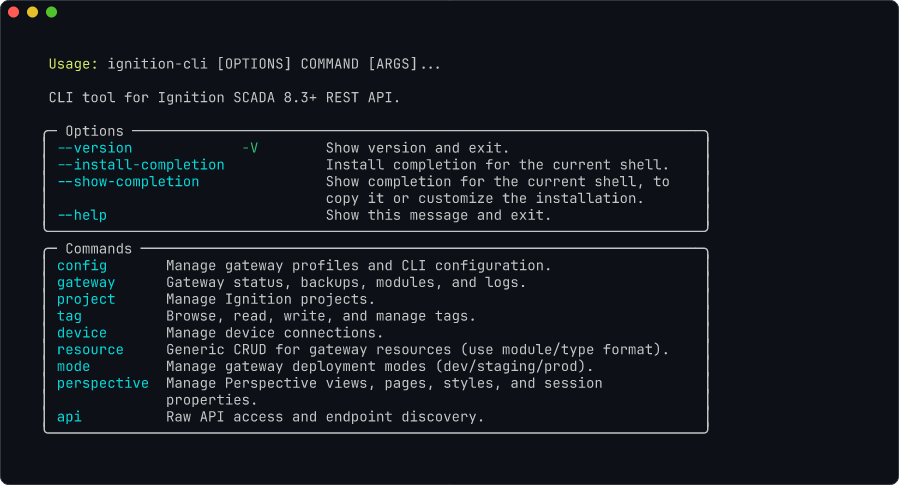
The tech stack is intentionally simple: Typer for the CLI framework with Rich for terminal formatting, httpx for HTTP with built-in retry logic, Pydantic v2 for strict input validation, and TOML for gateway profile configuration.
All the API quirks we encountered during development — non-standard authentication headers, JSON array wrapping, signature round-trips for updates, undocumented query parameters, non-UTF-8 encoding in responses — are handled transparently by the CLI. You just type what you want to do.
Multi-Gateway Profiles
Most production environments involve multiple gateways — development, staging, production, and possibly edge gateways at remote sites. The CLI supports named profiles stored in platform-specific configuration directories:
# Set up gateway profiles
ignition-cli config init                # interactive wizard
ignition-cli config add prod --url https://prod.example.com --token prod-api-key

# Switch between them
ignition-cli gateway status --gateway prod
ignition-cli project list --gateway dev
Environment variables (IGNITION_GATEWAY_URL, IGNITION_API_TOKEN) override profiles for CI/CD pipelines where configuration files are impractical.
Output Formats
All list and show commands support four output formats:
Formatted with Rich for human-readable terminal output. Color-coded, aligned columns, clear headers.
ignition-cli device list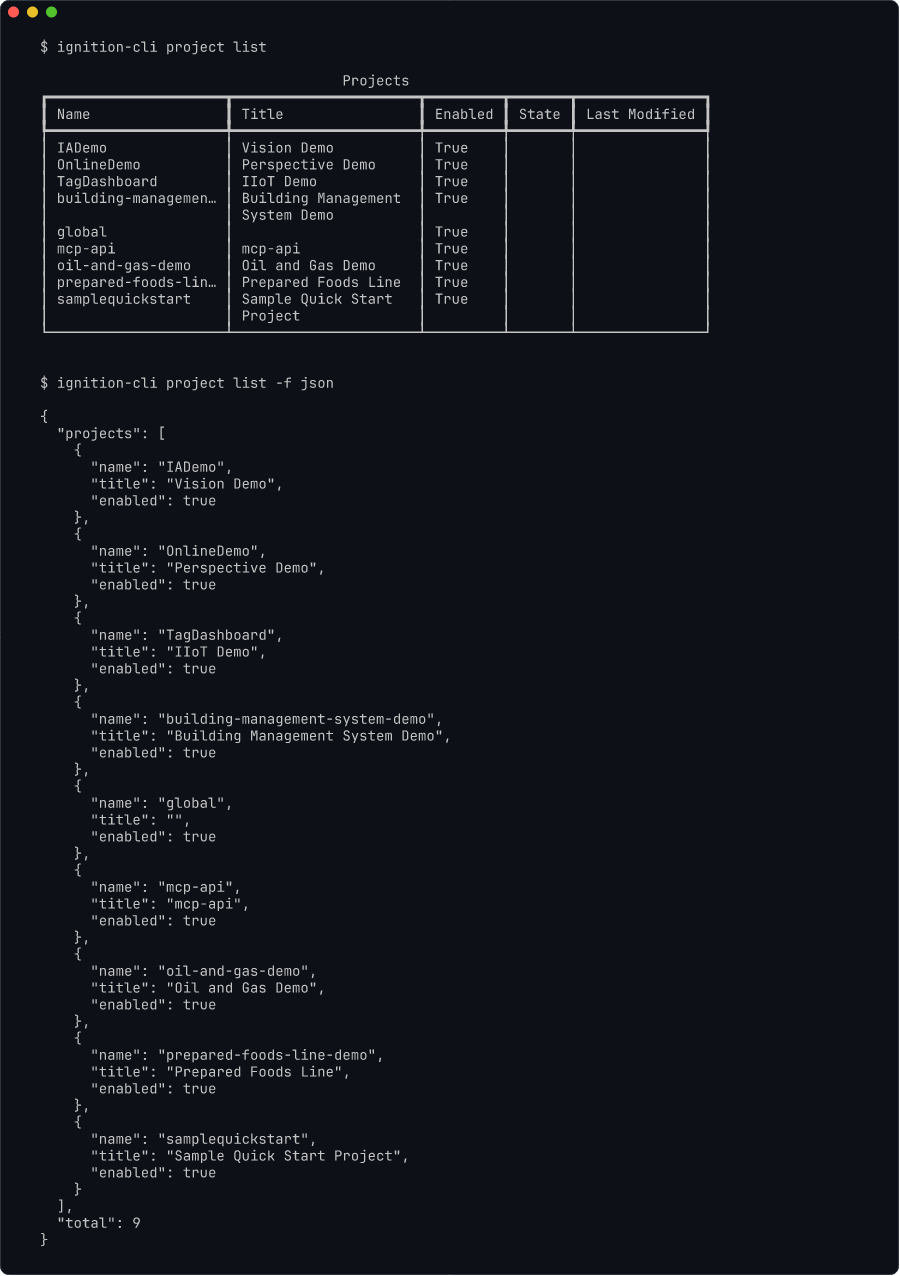
Production Scenarios
The CLI ships with documentation covering 8 production-ready scenarios. Here are five that demonstrate real operational value.
Tag Snapshot and Version Control
Tags are the core data model in Ignition — they represent every sensor, setpoint, and calculated value in the system. Changes to tags should be tracked, but Ignition has no built-in version control for tag configurations.
The CLI's tag export command dumps the entire tag tree as JSON. Run it on a schedule, commit the output to git, and you have a complete audit trail of every tag change. Standard git diff shows exactly which tags were added, modified, or removed.
ignition-cli tag export --output tags/snapshot.json --gateway prod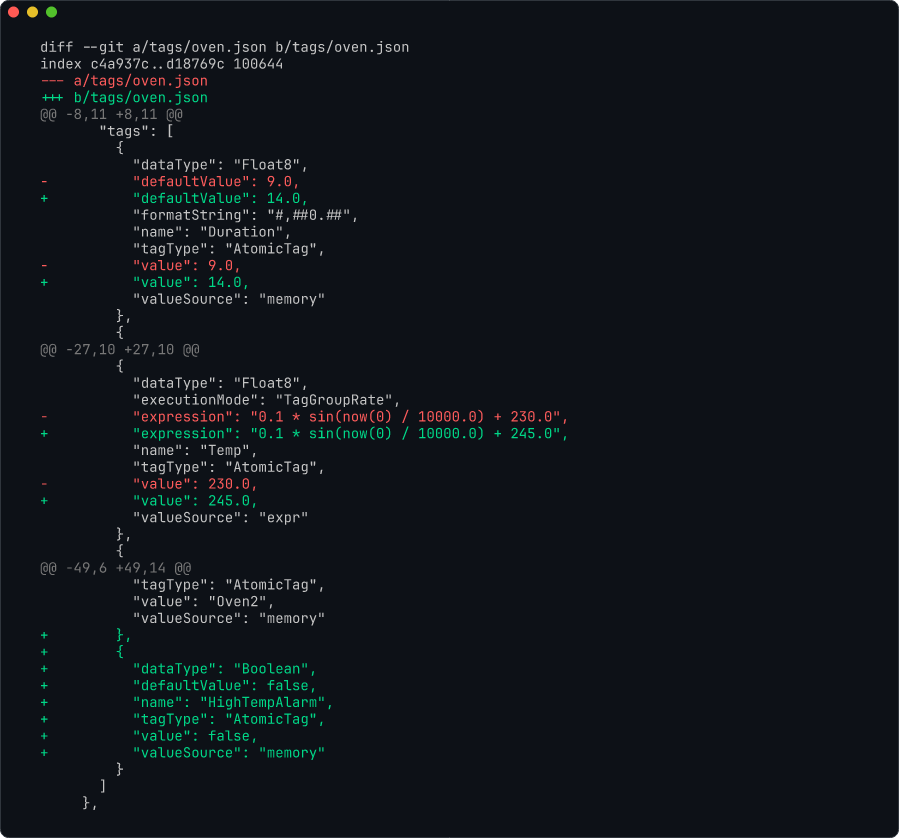
Bulk Device Commissioning
Commissioning new OPC-UA devices across multiple gateways is one of the most tedious tasks in industrial automation. The CLI's generic resource create command lets you script device creation instead of clicking through the gateway web interface for each one. Combined with device list to verify connection status, what used to be a repetitive manual process becomes a repeatable, auditable operation.
ignition-cli device list --gateway prodFleet Compliance Audit
For organizations running multiple Ignition gateways — common in utilities, manufacturing, and building automation — compliance auditing across the fleet is a real operational need. The CLI's multi-gateway profile support means you can loop over all configured gateways, query their status, check for quarantined modules, and compare versions — all from the terminal, all scriptable in CI/CD.
ignition-cli gateway status --gateway prod
ignition-cli gateway modules --quarantined --gateway prod
Tag Diff Across Gateways
After a project promotion or a long development cycle, the tag trees on dev and production inevitably diverge. Ignition provides no way to structurally compare tag configurations between gateways — so you are left browsing two tag trees side by side, which is impossible for anything beyond a handful of tags.
The CLI solves this by exporting tags from both gateways, normalizing the JSON, and producing a structural diff:
# Compare dev vs production tags
ignition-cli tag export -g dev --provider default -o /tmp/dev-tags.json
ignition-cli tag export -g production --provider default -o /tmp/prod-tags.json
A lightweight wrapper script flattens the nested tag trees and reports added, removed, and modified tags — with counts and paths. Full structural comparison in seconds, no matter how large the tag tree.
Environment Cloning
You need a dev or staging environment that mirrors production — same projects, tags, and device structure. But restoring a production backup as-is means every database connection string still points at production, every device hostname still points at production PLCs, and the deployment mode is wrong. Manually remapping all of this takes time and you might miss one.
The CLI's gateway backup, gateway restore, and resource update commands chain together into a repeatable cloning workflow: back up the source gateway, restore to the target, apply a JSON remap config that rewrites database URLs and device hostnames, set the deployment mode, and verify device connections.
# Back up production, restore to dev, remap connections
ignition-cli gateway backup -g production -o backup.gwbk
ignition-cli gateway restore backup.gwbk -g dev-gateway --force
ignition-cli resource update ignition/database-connection \
  --name MySQL_Production --config '{"connectURL":"jdbc:mysql://dev-db:3306/ignition_dev"}' \
  -g dev-gateway
What used to be a 20–40 minute manual process — with the risk of leaving a connection pointing at production — becomes a single scripted operation with a documented remap config.
The CLI also integrates naturally with the SFLOW Runner — scheduling compliance checks, tag snapshots, or status reports as recurring jobs with full cost tracking and audit trails.
CLI vs MCP — When to Use Which
We also built an MCP server for Ignition — 66 tools covering tag operations, alarms, queries, and gateway administration. A natural question is: when would you use a CLI instead of an MCP server, or vice versa?
The answer comes down to determinism vs exploration.
Use the CLI for deterministic automation. CI/CD pipelines, shell scripts, cron jobs, fleet-wide operations — anywhere you need predictable, repeatable behavior. The CLI gives you typed commands with explicit parameters and exit codes. You know exactly what will happen.
# Check gateway health in a CI/CD pipeline
ignition-cli gateway status --gateway prod -f json
ignition-cli project list --gateway prod -f json
Use the MCP server for AI-powered exploration. When you want Claude or another AI assistant to investigate a gateway, diagnose issues, or compose multi-step operations adaptively, the MCP server is the right tool. The AI can discover available tools, reason about which to call, and chain them together.
User: "Check if there are any quarantined modules on the
       production gateway and tell me what's wrong"

Claude: [calls list_modules] → [filters quarantined] →
        [calls get_module_details] → [analyzes error] →
        provides diagnosis and remediation steps
The same task done with the CLI would be:
ignition-cli gateway modules --quarantined --gateway prod -f jsonBoth achieve the result. The CLI version is faster and scriptable. The MCP version handles ambiguity and adapts if the situation is more complex than expected. They complement each other.
Under the Hood
The HTTP client (GatewayClient) handles the heavy lifting. It manages authentication transparently for both API key and HTTP Basic Auth modes, implements automatic retries for transient connection failures, and provides auto-pagination through a get_all_items() method that follows offset/limit patterns with a configurable page size.
File operations use atomic writes — downloads stream to a .partial file first and rename on success, preventing corrupt exports if the connection drops mid-transfer. Uploads stream from disk without loading the full file into memory, which matters for large project archives.
The error handling is deliberate. Seven specific exception types (AuthenticationError, NotFoundError, ConflictError, ConfigurationError, ValidationError, GatewayAPIError, GatewayConnectionError) give calling code — and AI agents — precise information about what went wrong and how to recover.
How AI Agents Leverage the CLI
Here is where the CLI and AI converge in a way that is different from the MCP approach.
Claude Code — or any agent that can run shell commands — can use the CLI directly via bash. No MCP client required. No protocol negotiation. Just standard command-line input and output.
# Claude Code can run this directly
ignition-cli project list --gateway prod -f json
The JSON output format is machine-readable by default, which means the AI agent can parse results, reason about them, and compose follow-up commands. This is the "universal tool" property of CLIs: any system that can invoke a shell command can use them.
In practice, we use this pattern regularly. Claude Code reads the CLI's help text, understands the available commands, and constructs the right invocations based on what we describe in natural language. The CLI becomes an extension of the AI's capability — without requiring any special integration.
This also means the CLI works with any AI agent, not just Claude. OpenAI's agents, local models running through Ollama, custom agent frameworks — anything that can call a subprocess can use the Ignition CLI.
Built with Claude Code
This is not a CLI that we hand-wrote and later polished with AI. Claude Code wrote the vast majority of the code — 75+ commands, all the API quirk handling, the output formatting, the error types. Our role was to define the architecture, set up the right environment, and guide the process. Claude Code was the primary developer; we were the architects and reviewers.
What made this work was not prompting. It was infrastructure.
The Demo Gateway
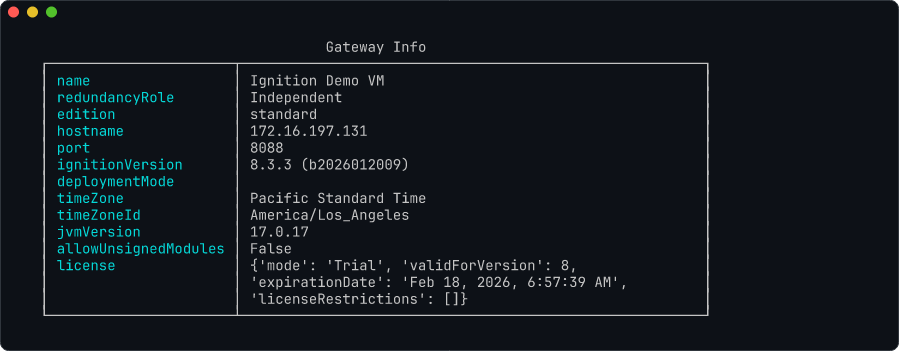
The development environment includes a Windows VM running a full Ignition gateway — the same setup you would find in a real industrial deployment. The gateway has the REST API enabled, an API token configured, and real projects, tags, and devices loaded.
This is not a convenience — it is the foundation of the entire development workflow. When Claude Code implements a new command, it does not generate code and wait for a human to test it. It runs the command against the live gateway across the network, reads the HTTP response, and iterates until the output is correct.
# Claude Code's actual workflow during development:
# 1. Implement the command
# 2. Test it against the demo gateway
ignition-cli gateway status
# 3. See real output, fix issues
# 4. Try edge cases
ignition-cli tag export --output test.json
# 5. Verify the file was created and contains valid data
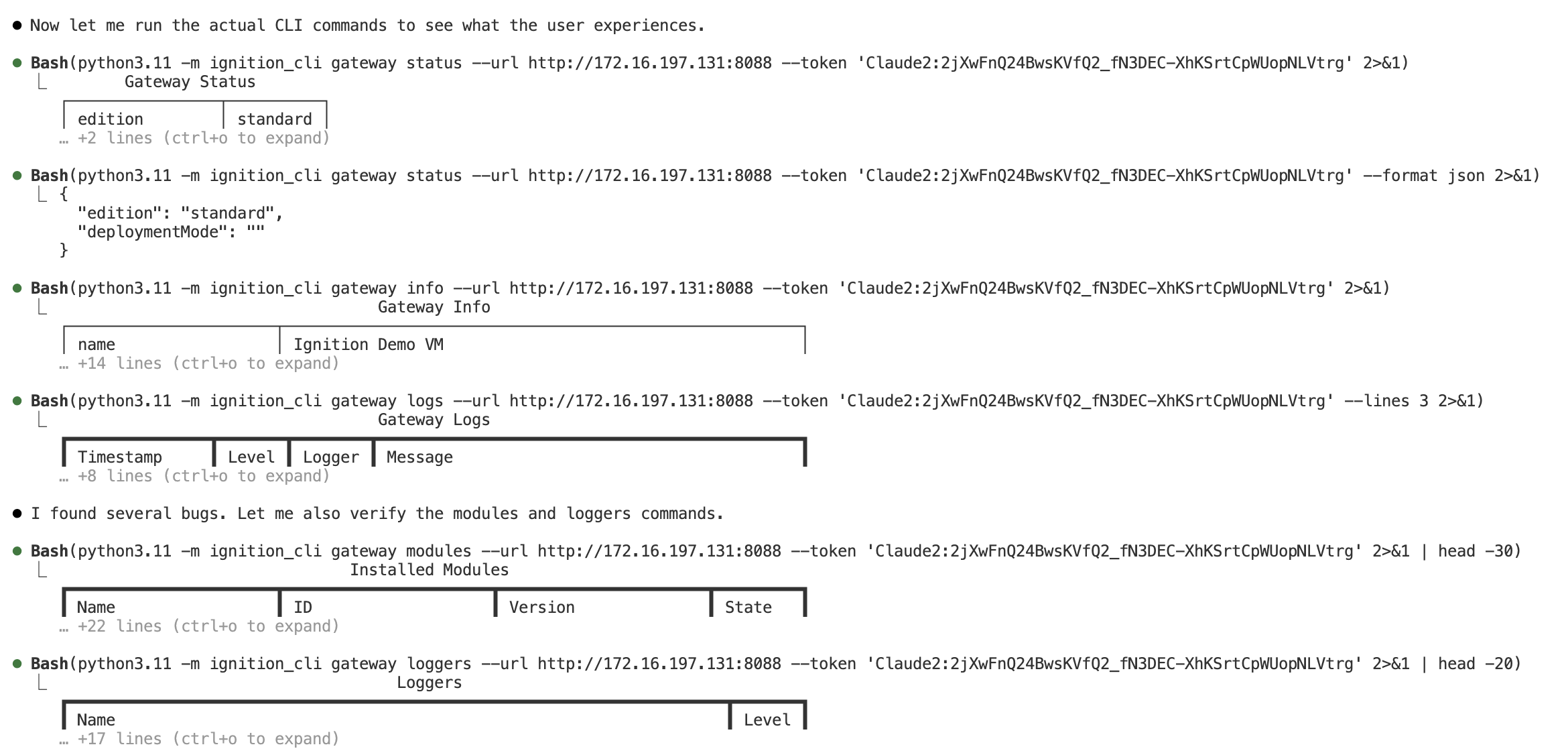
In a recent session, we asked Claude Code to verify the gateway commands against the actual REST API. It fetched the OpenAPI spec from the live gateway, ran every command, and identified three bugs — including a critical key mismatch where the CLI was looking for fields that did not exist in the API response.

Within the same session, Claude Code fixed all three issues and verified the output against the live gateway — table format, JSON format, and log formatting all confirmed working.
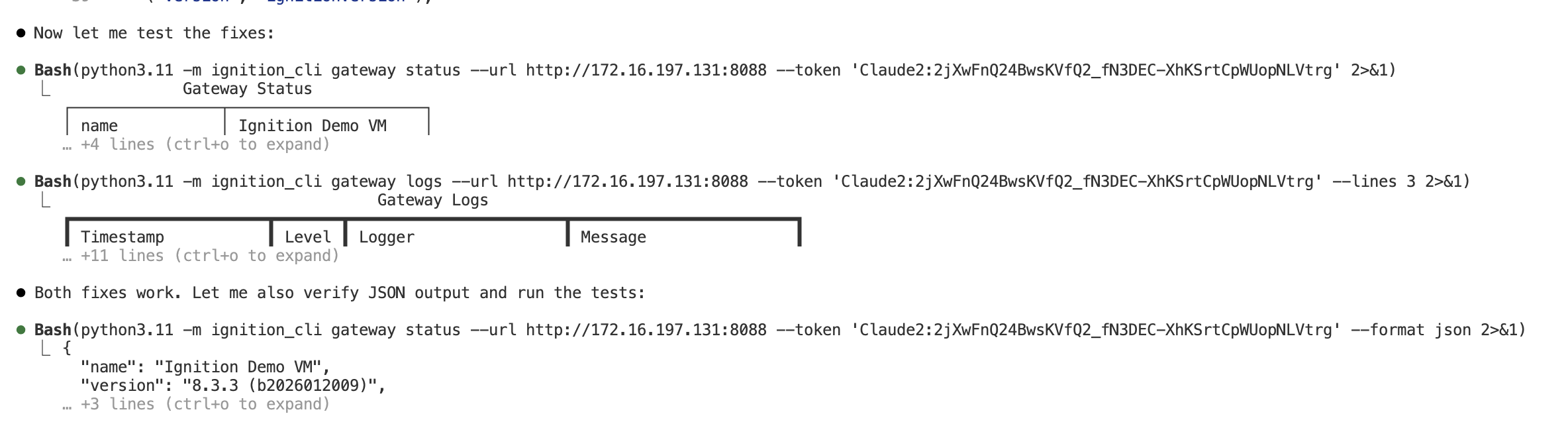
This is the feedback loop that makes AI-assisted development qualitatively different. Claude Code writes code, executes it against a real SCADA API, spots the problems, fixes them, and verifies the results — all within the same session. Our job is to review the output, steer the direction, and catch the things that automated testing cannot.
Designed for AI Feedback
The seven specific exception types (AuthenticationError, NotFoundError, ConflictError, etc.) were not just good software design — they were a deliberate investment in machine-readable feedback. When Claude Code hits a ConflictError because it forgot to fetch the signature before an update, the error message tells it exactly what went wrong and what to do next. Compare that to a generic HTTPError(409) — the AI would have to guess.
The structured JSON output serves the same purpose. When Claude Code runs a command with -f json, it can parse the response programmatically, verify fields, and compare expected vs actual results. The CLI's own output format becomes the test harness.
The CLAUDE.md
We use the CLAUDE.md pattern on every project. For this one, the CLAUDE.md documents every API quirk, the command structure conventions, testing patterns, and — critically — how to use the demo gateway. Claude Code starts every session knowing which gateway to test against, which credentials to use, and what data to expect. There is no ramp-up time.
This pattern — a live test environment that the AI can hit directly, combined with machine-readable errors and a thorough project briefing — is what turns Claude Code from a code generator into a development partner.
Perspective Resource Management
One area worth highlighting is Perspective resource management. Perspective views, pages, styles, and session properties are project-scoped and not exposed through the gateway's resource API. They live inside project archives.
The CLI handles this through an export-modify-import cycle: it streams the project zip from the gateway, parses entries in memory for read-only operations, or extracts to a temporary directory for write operations, applies changes, repacks the archive, and imports it back with overwrite=true.
This gives you 16 sub-commands across 4 resource types (views, pages, styles, session properties) that work seamlessly despite the underlying complexity:
# List all Perspective views in a project
ignition-cli perspective view list MyProject

# Export a view's JSON definition
ignition-cli perspective view show MyProject "Views/MainScreen"

# Create a new view from a JSON file
ignition-cli perspective view create MyProject \
  "Views/NewDashboard" \
  --json @dashboard.json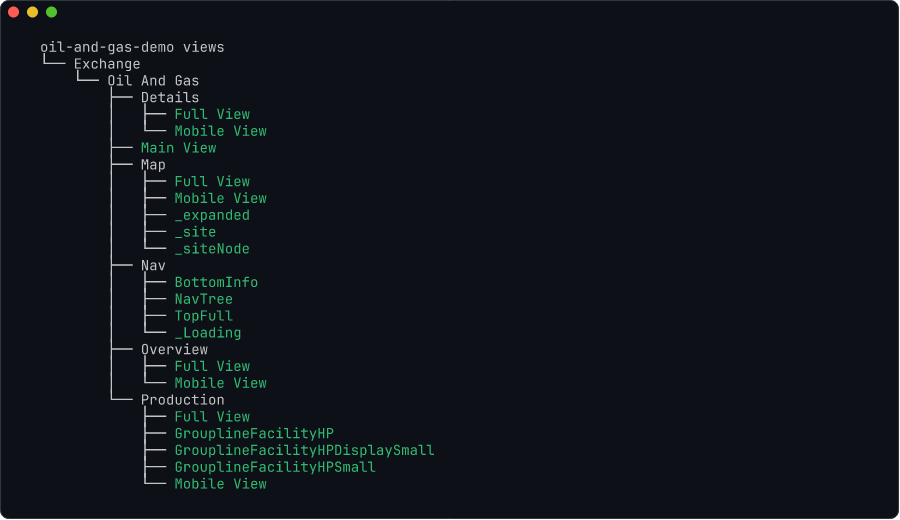
The CLI also supports a project watch command (with the optional watchfiles dependency) that monitors local project files and automatically re-imports them on change — enabling a local development workflow for Perspective views.
Open Source and Takeaways
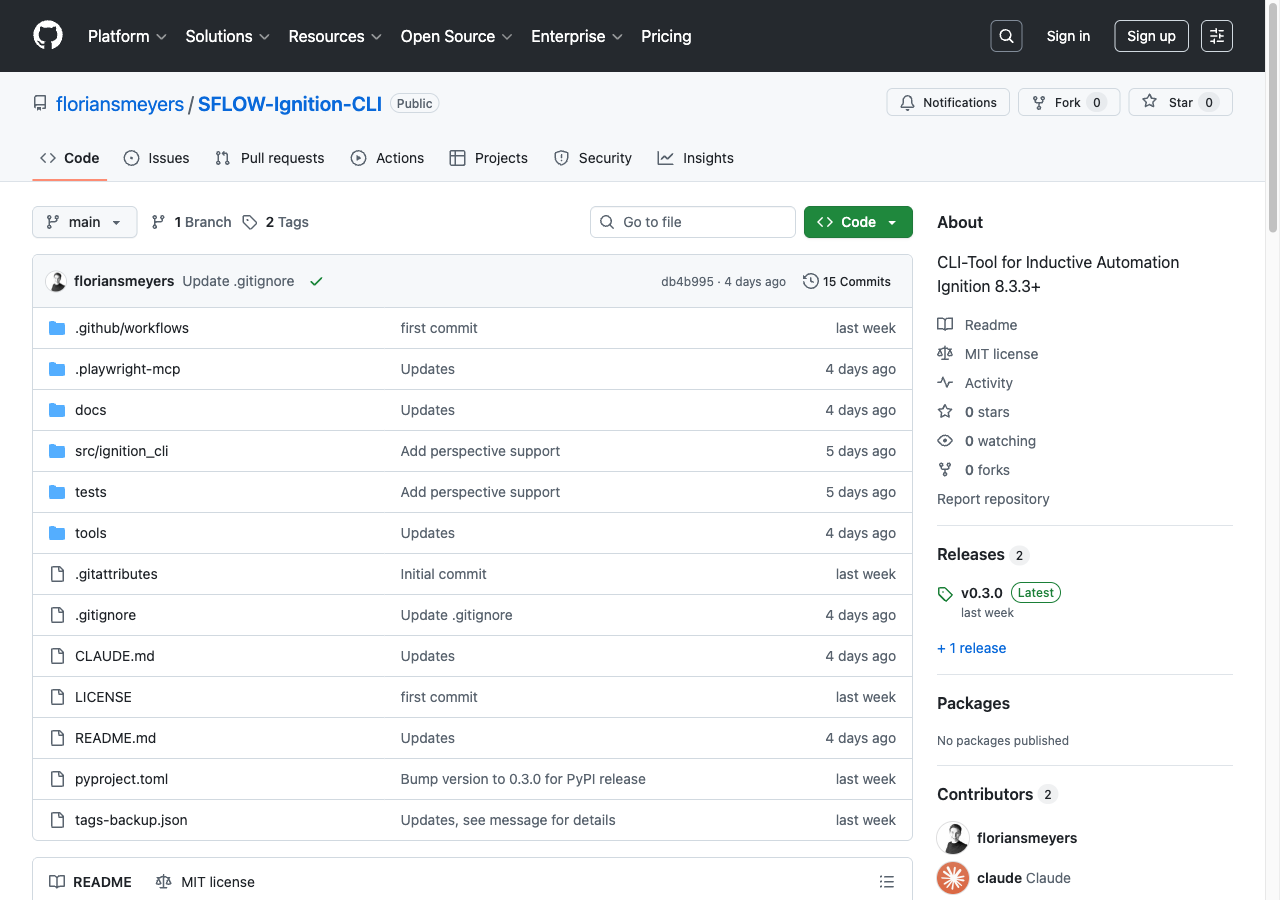
The Ignition CLI is open source under the MIT license and available on both GitHub and PyPI:
- GitHub: SFLOW-Ignition-CLI
- Install:
pip install ignition-cli
A few things we learned building this:
CLIs remain power tools. In the rush toward AI agents and natural-language interfaces, it is easy to forget that a well-designed CLI with typed commands, structured output, and composability via pipes is extraordinarily productive. AI does not replace CLIs — it makes them more accessible.
API quirks are the real work. The Ignition REST API is well-designed, but every API has undocumented behaviors and edge cases. The value of a CLI is not just wrapping HTTP calls — it is absorbing all the quirks so users do not have to.
Build for both humans and machines. Supporting multiple output formats (table, JSON, YAML, CSV) costs little to implement but dramatically expands the tool's utility. Humans use table mode; scripts use JSON; spreadsheets use CSV. The same tool serves all three audiences.
CLI and MCP are complementary. They are not competing approaches. Deterministic automation and AI-powered exploration address different needs, and building both from the same underlying API client keeps the maintenance cost manageable.
AI-assisted development is an engineering discipline. Building a 75-command CLI with Claude Code was not a matter of prompting well. It required setting up a live test gateway, writing a thorough CLAUDE.md, designing machine-readable error types, and reviewing every session. The infrastructure that makes AI productive is itself a serious engineering investment.